


Keep Your Playlist Digital Updated

Keeping Playlist Digital up to date is essential to ensure stability, performance, and access to the latest system improvements. In this article, we show you why updates are important, how to check the installed version, and step-by-step instructions for updating the software safely.

Ongoing Commitment to the Evolution of Your Radio Station

Over many years, Playlist Software Solutions has been creating new features and making new software versions available to licensed customers with active maintenance contracts through its Customer Area.

We always strive to keep up with the latest developments in operating system technology and other software, bringing advanced and innovative features to your radio station.

It is extremely important to keep your system up to date.
 
Playlist Digital (nova versão)

How to Check If Your Playlist Is Up To Date

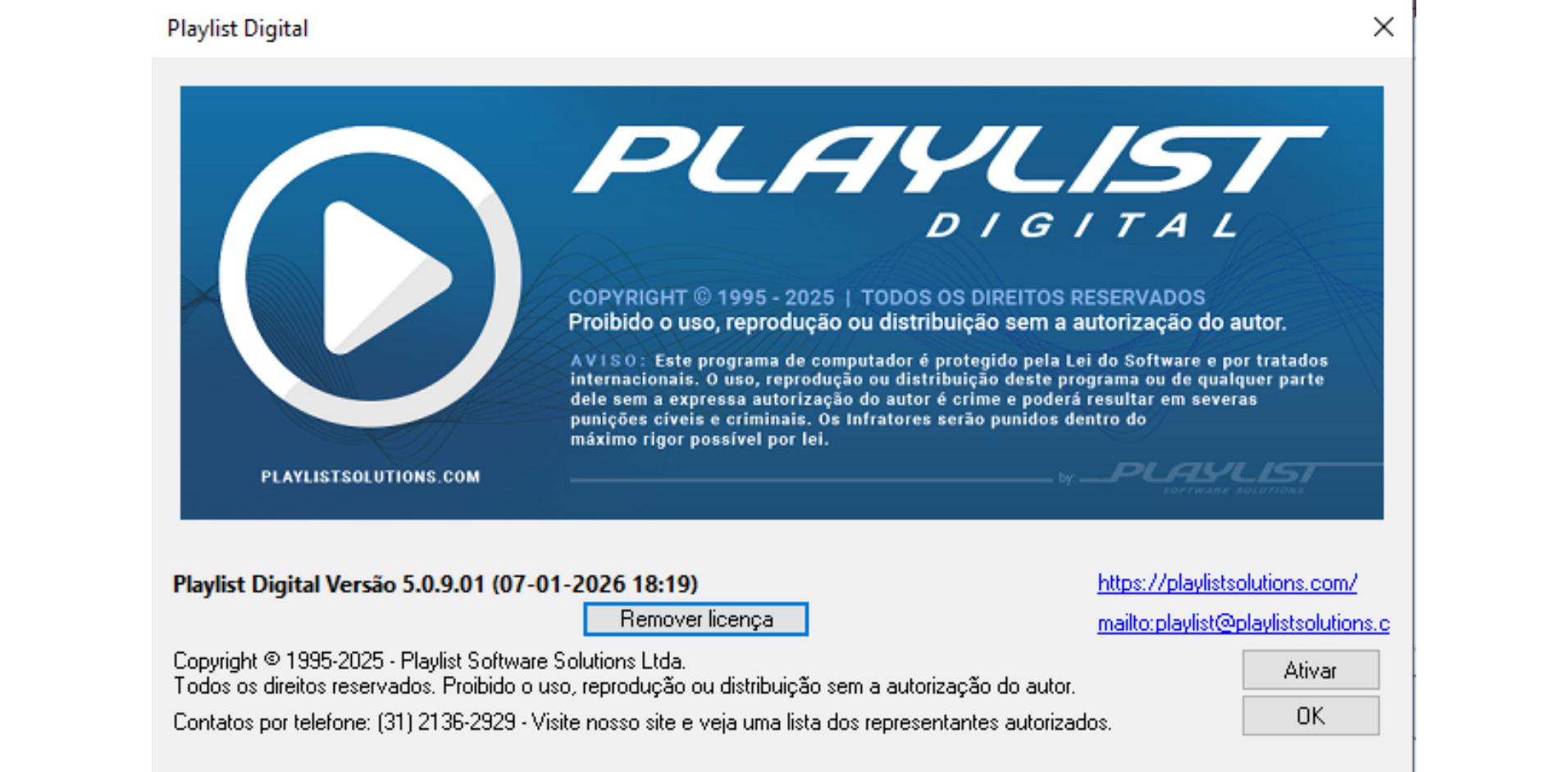
With Playlist Digital open, click on the “Help >>> About Playlist Digital” menu.

tela "Sobre o Playlist Digital"

Shortly after that, a screen will appear with your Playlist Digital information, containing the data and also the version it is currently on.

tela versão Playlist

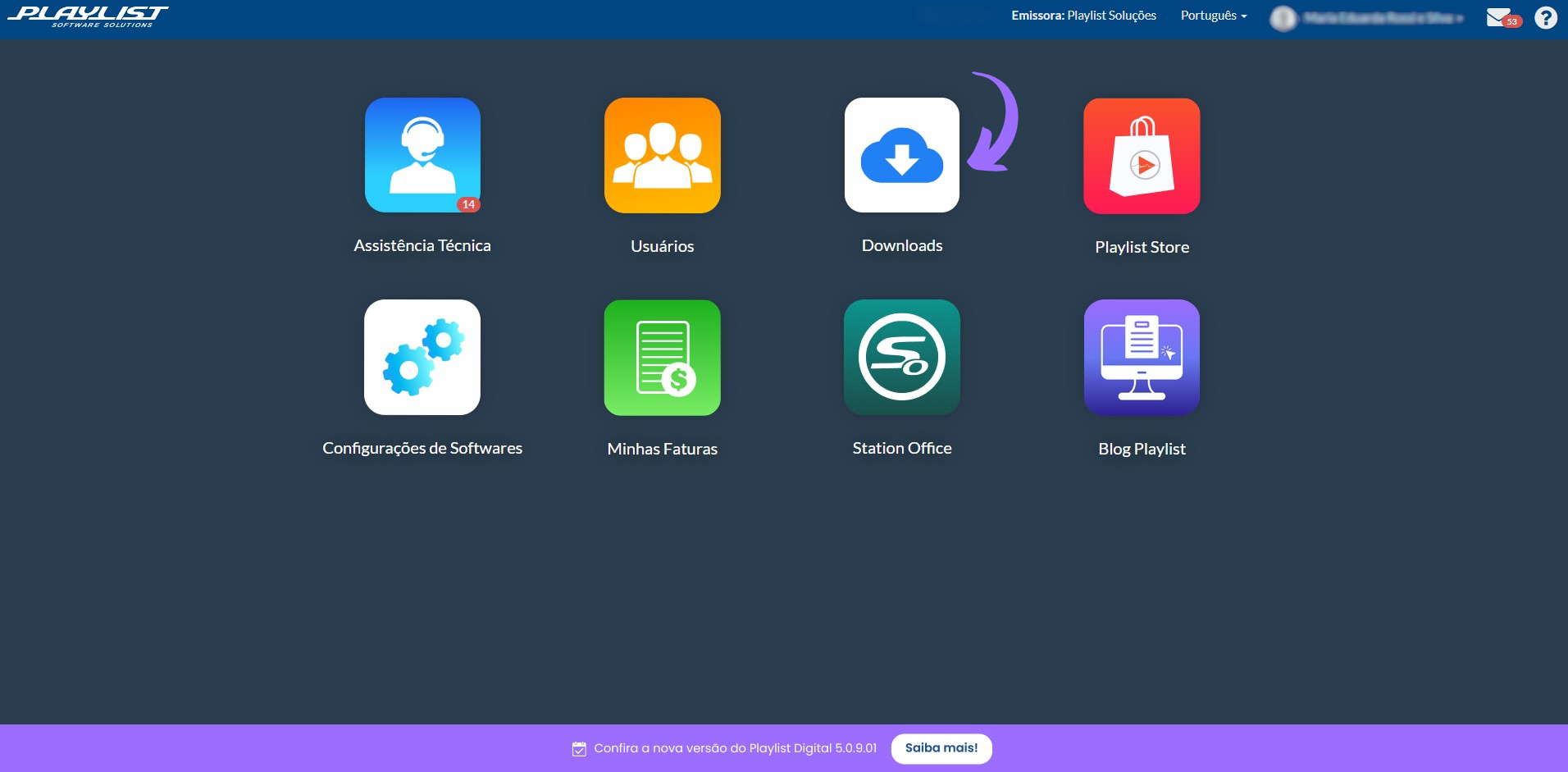
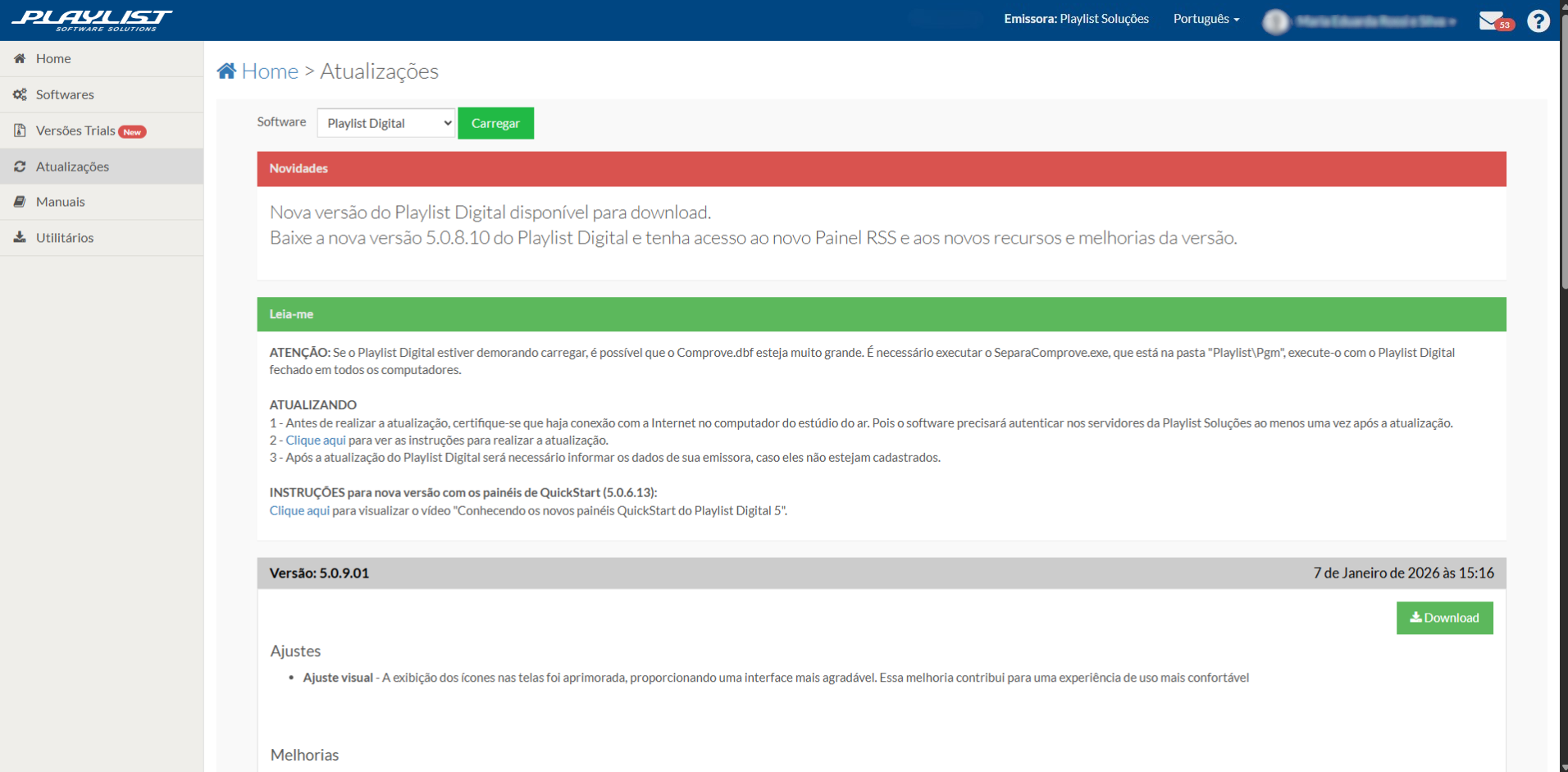
If you do not have the latest version, go to the Customer Area on the website https://playlistsolutions.com/ and then click on the option “Downloads >>> Updates.”

Download Área do Cliente

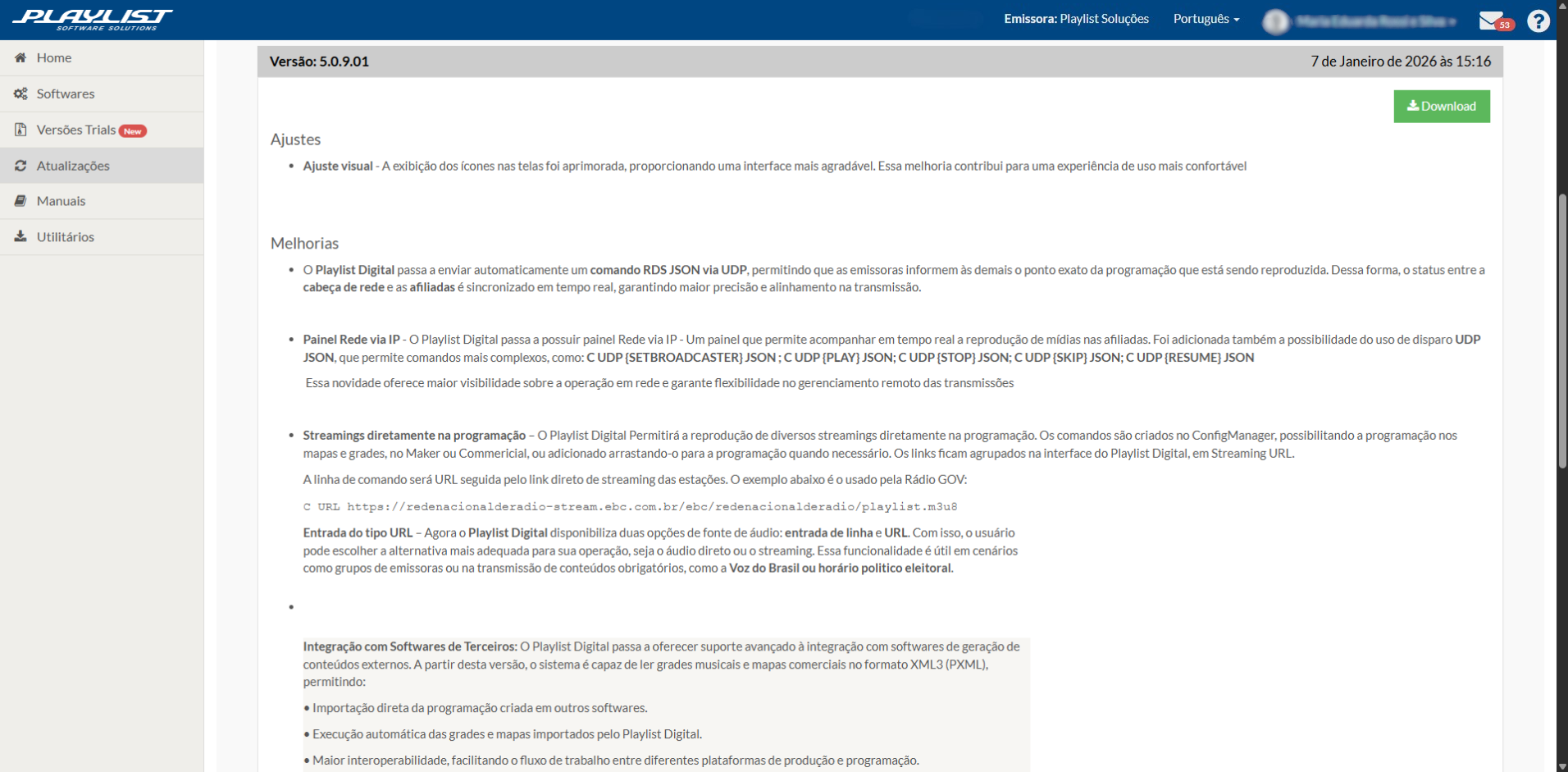
In the “software” field, select Playlist Digital and click the “Load” button. The download button will become available, and just below it, a description containing all the adjustments and improvements that have been made to the version in question.

Atualizações - Área do cliente

It is very important to read this information, even to find out if the system now has any features that could add even more value to your station.

Atualização - Área do cliente

How To Update Your Playlist Digital

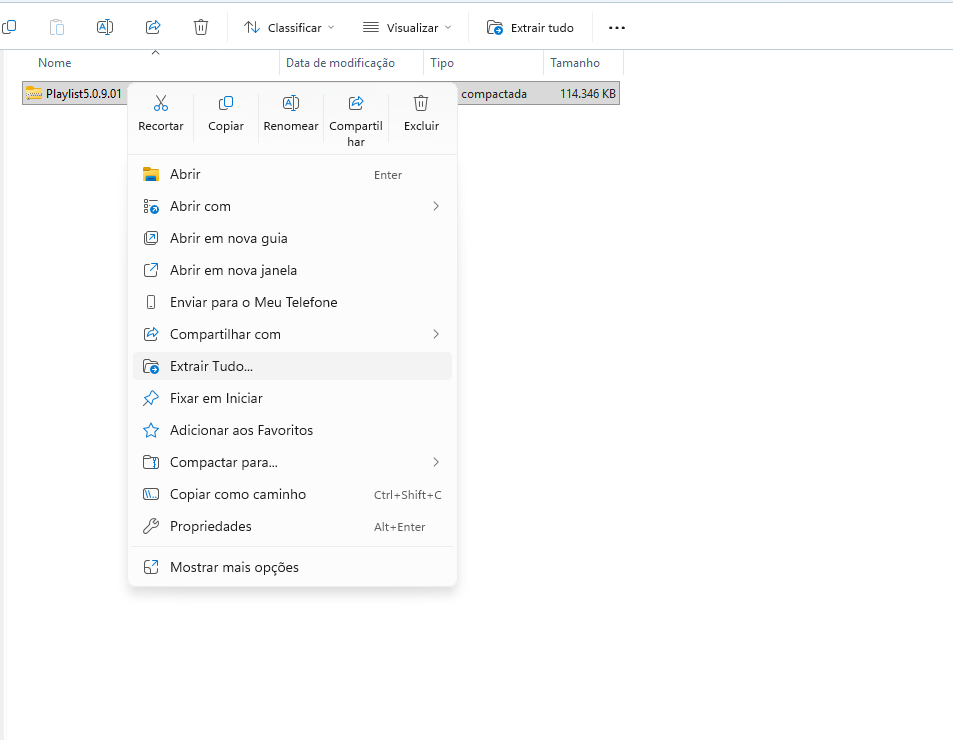
After downloading the file from the Customer Area, go to the folder where the file is located, right-click on it, and select “Extract all...”

Extrair Arquivo Atualização Playlist Digital

A new folder will appear. Open it and run the “Playlist Digital Updater.”

Atualizador Playlist Digital

 • Select the language for your Playlist Digital and click the “OK” button.
• Check the “I accept the terms of the agreement” box and click the “Next” button
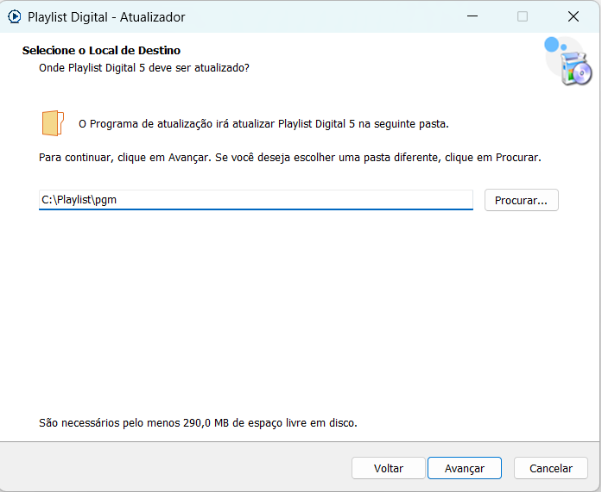
• Add the correct path to your Playlist’s pgm folder and click the “Next” button.

tela local de destino

• After that, click on “Update,” wait for the process to complete, and on the next screen, click on “Finish.”
• Once inside the Playlist, select an operator with administrator permissions, go to “Playlist,” and click on “Update version.” 
• Right after that, click on “Yes” to update the Playlist.

Note: the update process does not cause the Playlist to stop; it will restart and return updated.

Any questions?

Compartilhe esta Postagem:

Postagens Relacionadas