MIX MINUS
The feature that eliminates echoes and ensures professional radio transmissions
The combination of these two words already indicates the purpose of this feature found in professional audio consoles used in radio stations:
MIX: Mixing
MINUS: Less
Radio engineers and technicians are familiar with Mix Minus, which is widely used in telephone hybrid configurations. But even non-technical users can easily understand this concept, especially with Aires Studio, which automates this process and simplifies work during broadcasts and integrations with VOIP and Skype systems.
What is Mix Minus and why it is essential
Imagine a radio studio with two presenters and a remote participant connected by telephone. Everyone is “on air,” and the audio is mixed by the console and sent to the transmitter.
But there is one factor that must be taken into account: the audio signal that the studio sends to the external participant cannot contain the audio sent by them. If the studio’s audio console plays the same mix to the participant that it is sending to the transmitter, it would create a circle of audio from the participant back to themselves, which is a potential source of feedback and annoying echo.
The solution, then, is to create a special mix for the participant, applying MIX MINUS, where the participant will exclusively hear all the audio being mixed by the audio console except for the audio being sent by themselves. In short: the mix of everyone else (MIX) except them (MINUS).
Mix Minus in Aires Studio
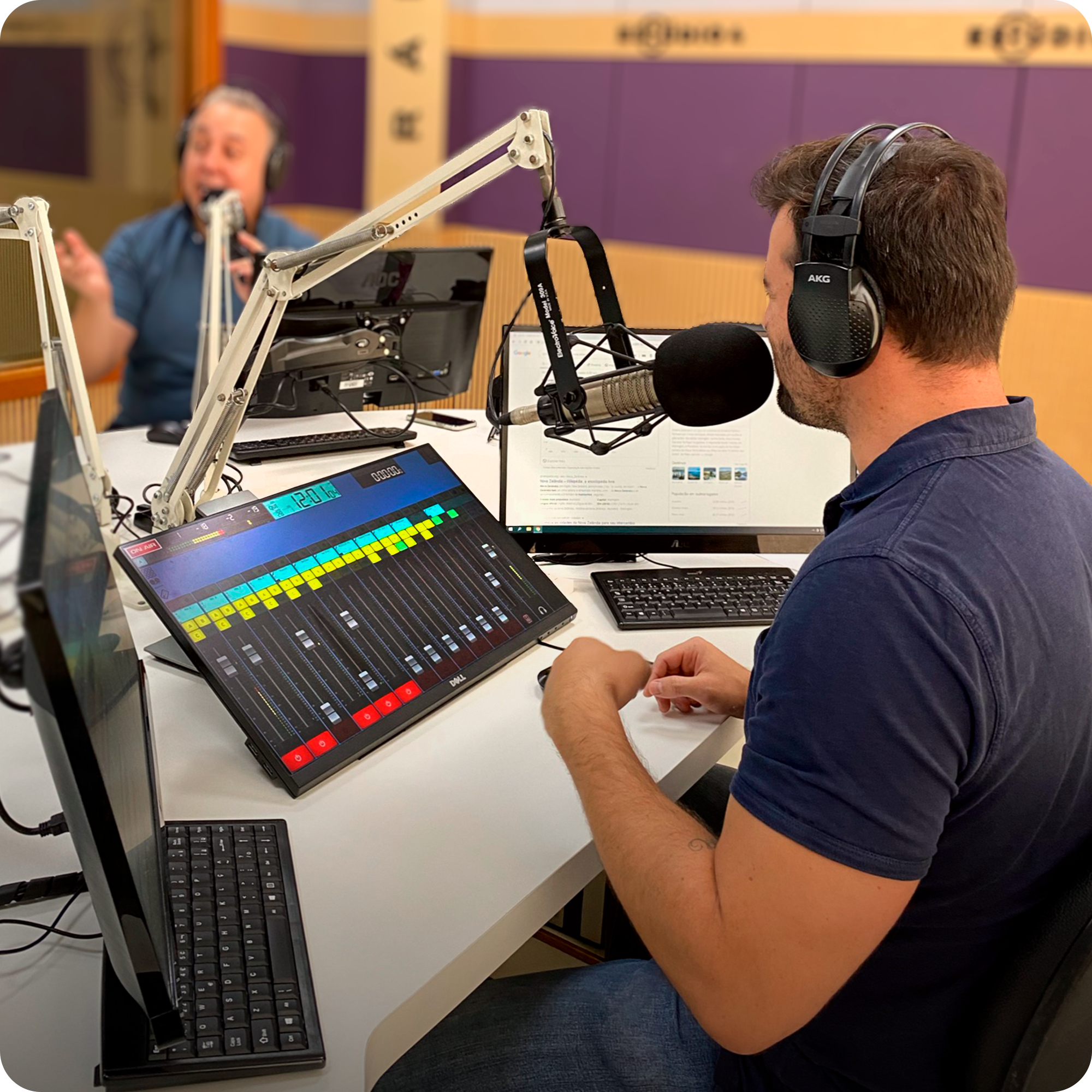
Aires Studio already has Mix Minus integrated automatically. This means that when using channels exclusively for external communication (such as reporters, mobile studios, or listeners connected via VOIP or Skype), there is no need to configure anything manually.
The system itself generates the correct feedback, ensuring that the participant hears the entire mix made in the studio, except for the audio sent by themselves.
The result? A clean, echo-free sound with professional quality.
Integrating Aires Studio with external soundboards
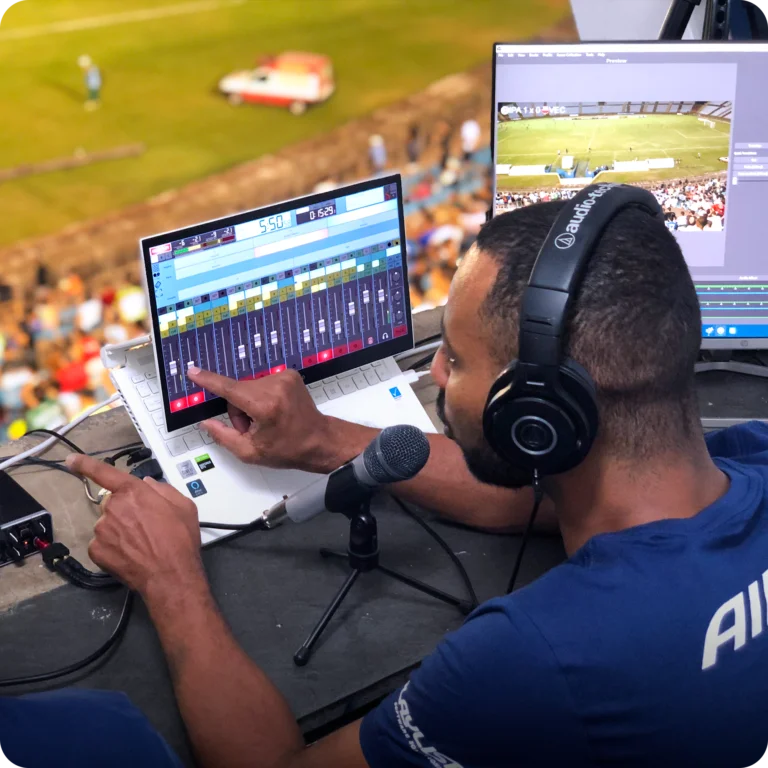
It is possible to add Aires Studio to audio consoles, both those manufactured exclusively for radio stations and standard market consoles, which, although they do not have specific features for radio, are widely used. To avoid feedback or echo from the audio sent by the console, it is recommended to configure Mix Minus manually, which can be done on the audio console itself or in Aires Studio.
Below are two scenarios for configuring the system so that there is no feedback from the received audio.
Scenario 1 – Mix Minus done on the audio console
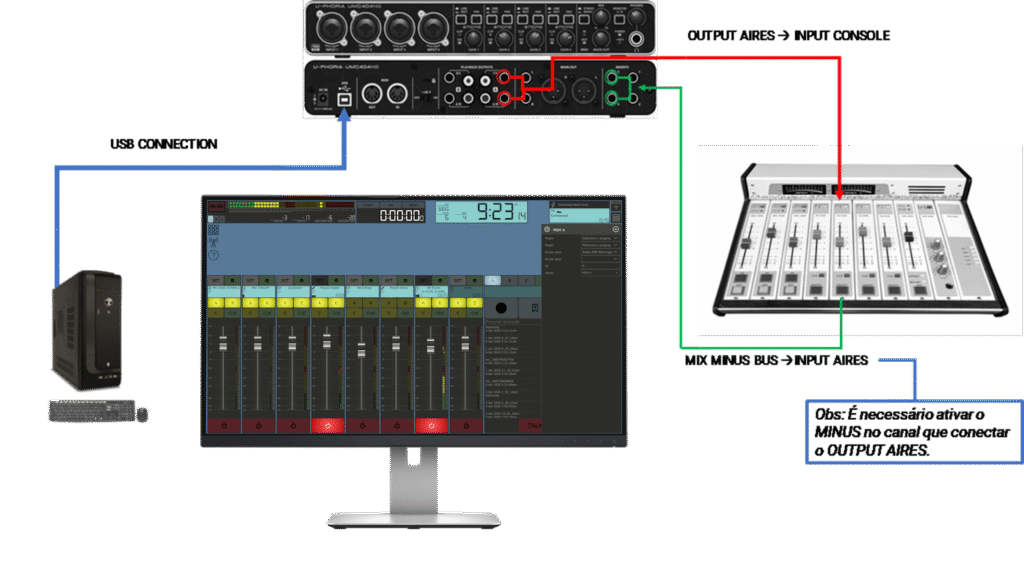
This scenario is illustrated using:
- Computer with Windows 10 and on-board sound card
- Audio interface with 4 x 4 (Input / Output)
- Professional audio console for radio
- Aires Studio
First, the physical connection of the cables interconnecting the devices is made:
- Route Output 1/2 of the audio interface to an input on the audio console.
- Route the mix-minus bus output of the console channel to Inputs 3/4 on the audio interface.
Follow the steps below to set up Aires Studio:
- Access “Menu > Sources”, locate the line input that was connected to the MIX MINUS return of the “audio console, in this case Line In 3/4”;
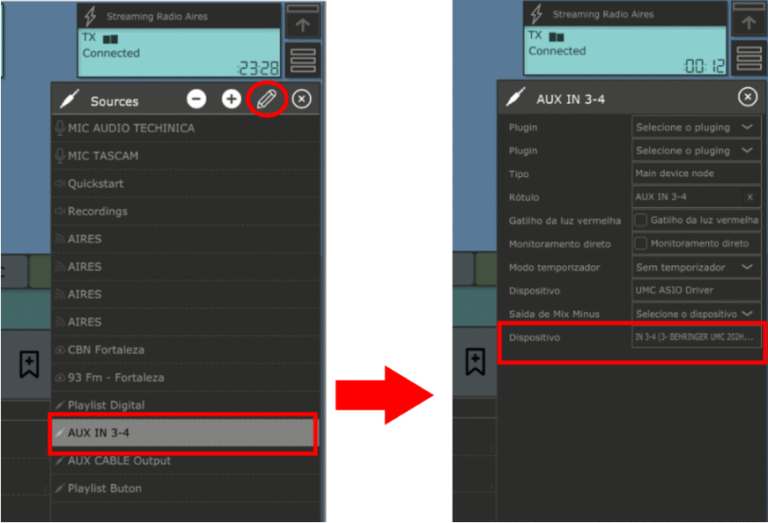
2. Rename this Source to “INPUT CONSOLE“;
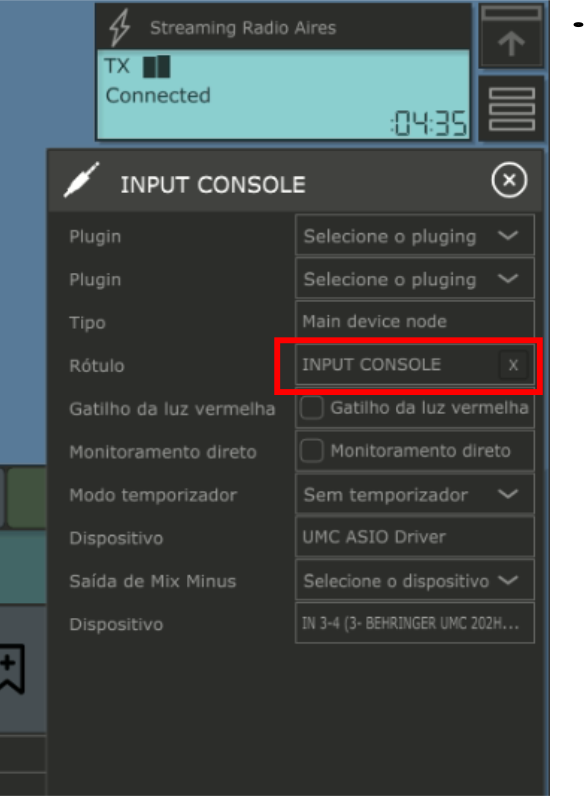
3. Access “Menu > Destinations”, locate the output corresponding to the one connected to the audio console, in this example Output 1/2.
4. Rename this Destination to “OUTPUT CONSOLE“.
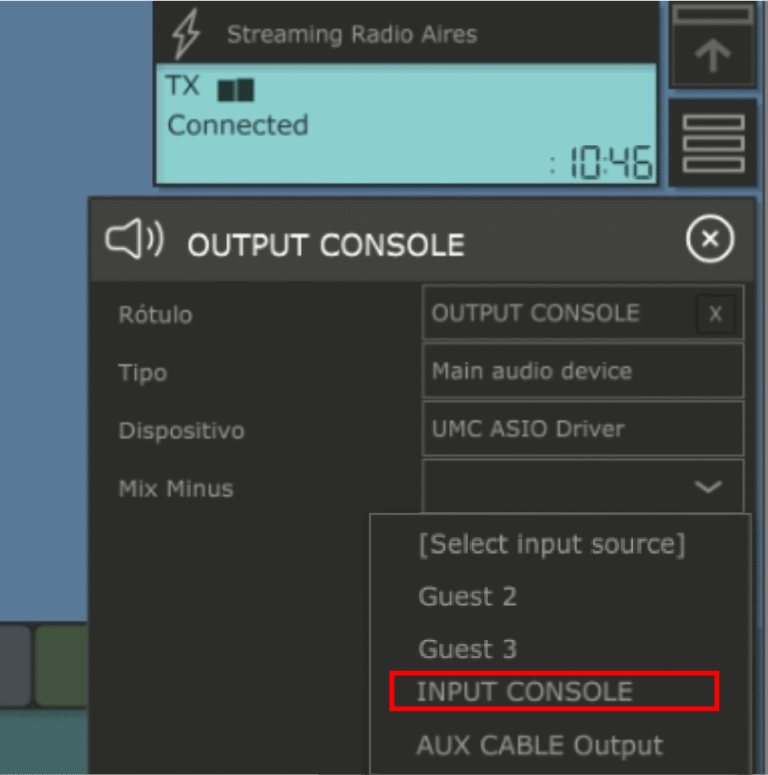
Still in Destination, select the “INPUT CONSOLE” option in the “MIX MINUS” configuration.
Obs.: If the console return does not appear in the list, it is because it must be selected in the mixer fader. You must remove it from the mixer fader before making this configuration.
- Go to “menu >> Buses,” select Bus A, and in the SEND TO option, select “OUTPUT CONSOLE.”
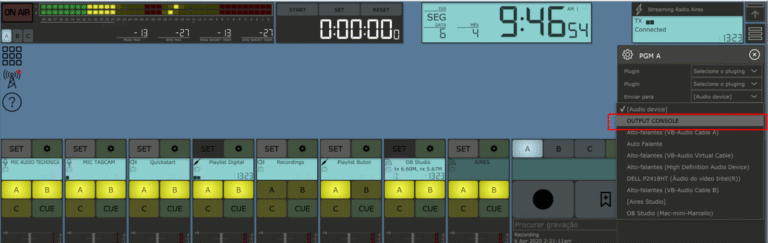
With this configuration, all reporters and remote studios will receive the MIX MINUS return from the audio console when connected to Bus A.
Scenario 2 – Mix Minus done on Aires Studio
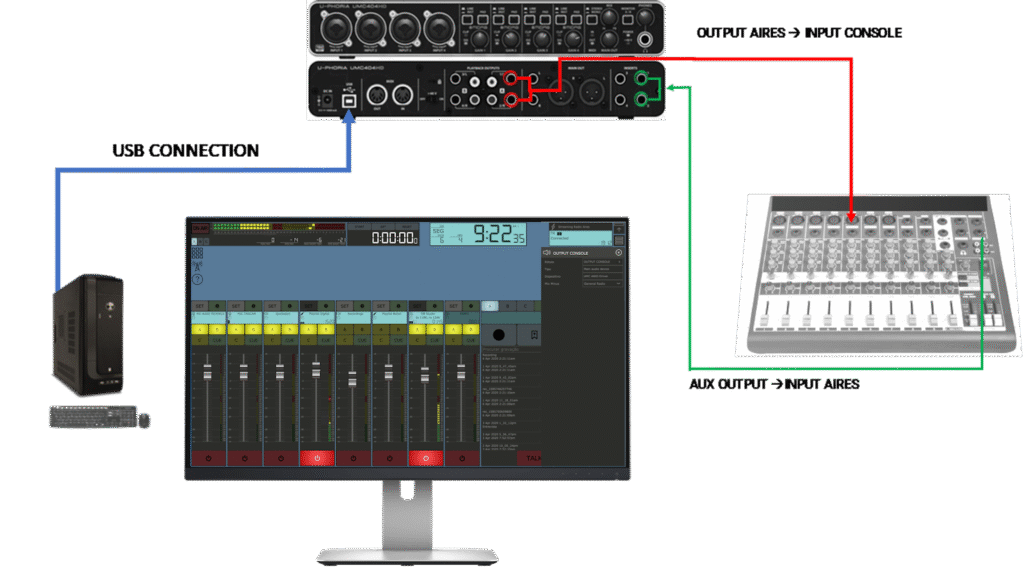
This scenario is illustrated using:
- Computer with Windows 10 and on-board sound card
- Audio interface with 4 x 4 (Input / Output)
- Standard audio console for recording studios
- Aires Studio
So, to apply MIX MINUS in this scenario, first physically connect the cables interconnecting the devices:
- Route the audio interface’s Output 1/2 to an input on the audio console.
- Route the console’s aux output to Inputs 3/4 on the audio interface.
Obs: To avoid feedback, completely cut any attenuation in the AUX volume of the STEREO channel that is receiving the OUTPUT from Aires.
Since there is no BUS MIX MINUS on the audio console, we will use the console’s auxiliary output and the settings in Aires Studio (so that there is no audio return feed) in the same way as presented in Scenario 01.
Obs: On some audio consoles, AUX may be labeled FX or MON.

About Aires Studio
Aires Studio is a platform that modernizes your entire studio, optimizing content delivery, designed for broadcasters who need resilience, flexibility, and professional quality in live or recorded broadcasts.
With Aires Studio, your broadcaster achieves quality, stability, and innovation in all coverage. Talk to our experts and find out how Aires Studio can enhance the broadcast quality of your event.
Still have questions?