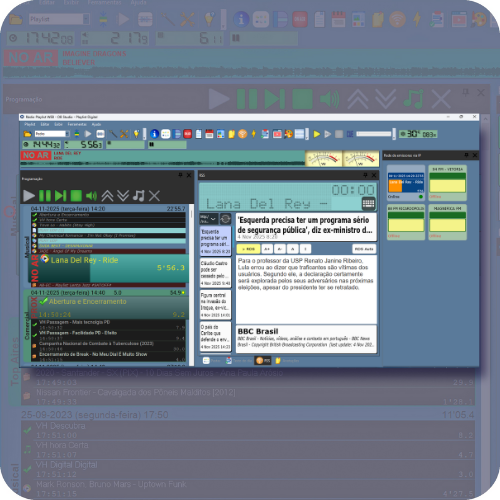
The role of operating systems in energy savings
Energy efficiency in information technology has become increasingly important in recent years. With advances in computer processing power, computers need to be able to deliver superior performance while consuming energy more efficiently.
Operating systems play a crucial role in equalizing resource utilization, allowing energy consumption and performance to be balanced appropriately. This means that it is possible to select a balance between the amount of energy consumed by computers and the performance they must deliver. This is an increasingly adopted practice, as it contributes to reducing energy consumption and, consequently, to preserving the environment.

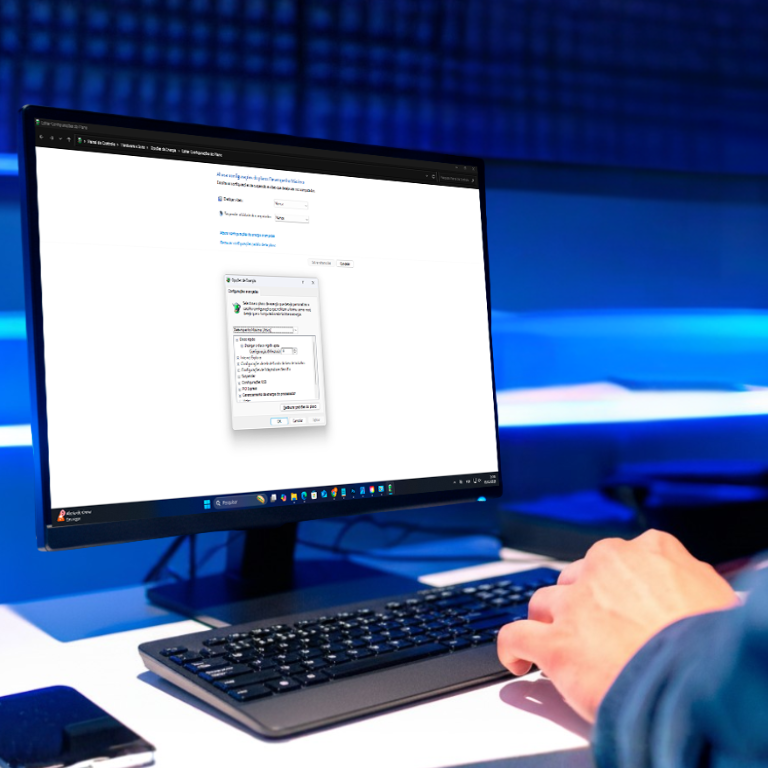
Why setting up power features correctly is essential
At radio stations, the computers used in broadcast studios operate continuously and must maintain consistent performance to deliver high-quality audio. These computers are considered high-availability systems.
By properly configuring the power saving feature on these computers, radio stations can ensure stable and reliable operation, avoiding unwanted service interruptions and maintaining audio quality during broadcasts. It is crucial to analyze and adjust the power saving settings correctly, as improper configuration or use of the operating system’s default settings can result in loss of performance for the intended purposes, crashes, and even interruption of peripherals such as audio interfaces. Therefore, by optimizing the power saving feature, radio stations can maintain flawless programming during broadcasts.
Computer Power Settings
As stated in the introduction, making power adjustments on computers is essential for optimizing performance and energy efficiency. In addition to adjustments in the operating system, it is also important to explore the options available in the computer’s BIOS.
Deactivate the C-States in the BIOS
C-States help turn off processor resources to save energy, which is not recommended in high-performance and high-availability applications. For this reason, some manufacturers recommend that this function be disabled in the BIOS.
The option varies depending on the motherboard manufacturer and BIOS. Check with your computer manufacturer on how to perform this task.
Windows Power Settings
As a basis for user guidance, we use Windows 10, since this operating system is currently used by over 70% of our customers. The same options also apply to Windows 11.
Windows provides some standard power plans, but they can be customized. We recommend always keeping the high-performance settings.
1 -Access the Control Panel and then the menu Opções de energia
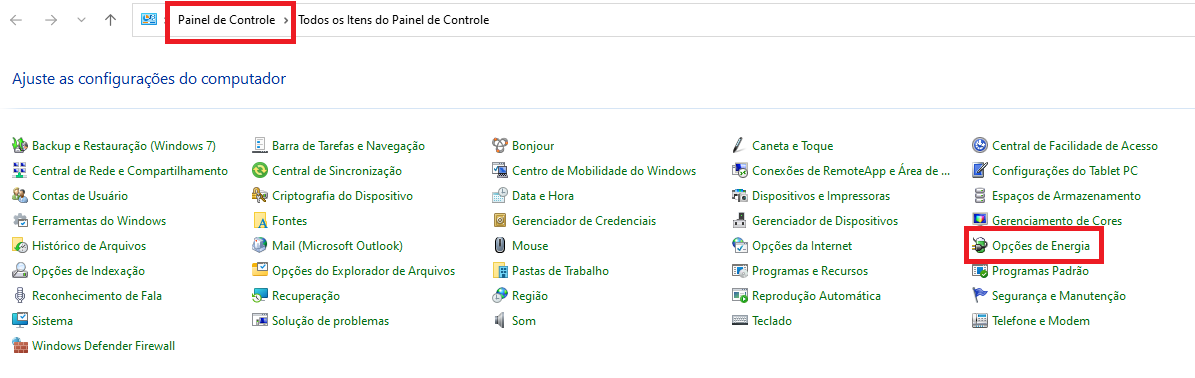
2 – Define the Plan Alto desempenho and then click on alterar configurações do Plano

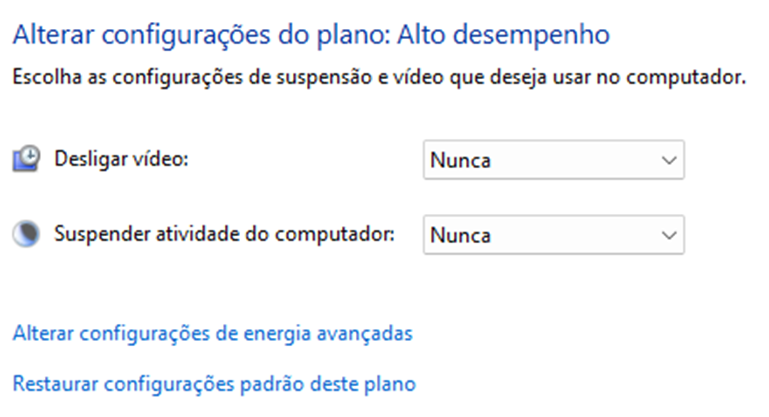
Obs.: Leave the settings as “NEVER,” as shown in the image above.
3 – Click on Alterar configurações de energia avançadas. The following window will appear:
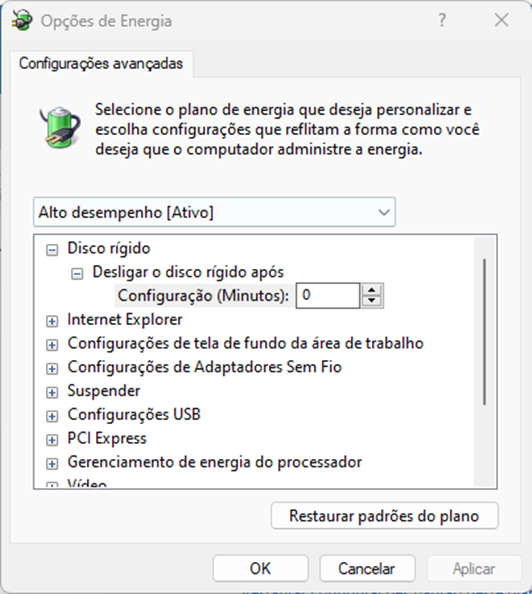
Set:
- Desligar o disco rígido após
- Configuração (minutos): 0
Set to 0 minutes. Even in high-performance configurations, the default setting is to turn off the hard drive after 20 minutes. Turning off the drive may prevent programs from accessing the drive and files.
- Configurações USB
- Configuração de suspensão seletiva USB
- Configuração: Desabilitado
Set the configuration to disabled. When using USB audio interfaces, suspending this type of device causes the system to stop playing audio on that output, crashing any software that is using it.
- PCI EXPRESS
- Gerenciamento de Energia do Estado da Conexão
- Configuração: Desligado
Set the configuration to off. Follow the same concept mentioned above with USB interfaces.
- Gerenciamento de energia do processador
- Estado de desempenho mínimo
- Configuração: 100%
- Estado de desempenho máximo
- Configuração: 100%
Since the On-Air computer that uses Playlist Digital or the console computer that uses Aires Studio are high availability, it is important that the processor power management option settings are set to 100%.
USB Bus Settings
In addition to Windows power options, some USB devices have a shutdown setting directly in the driver. To do this, access the Windows Device Manager by right-clicking on the “This computer” icon, then “Manage,” then “Device Manager,” or simply click “Start,” select “Run,” and type the command “devmgmt.msc”.
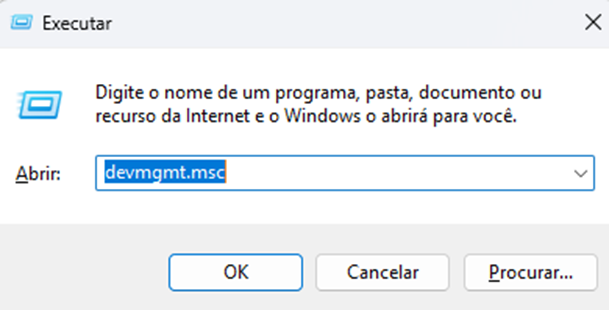
Access the option “Controladores USB (barramento serial universal)” Then open each bus by right-clicking on it and selecting Properties. The window below appears.
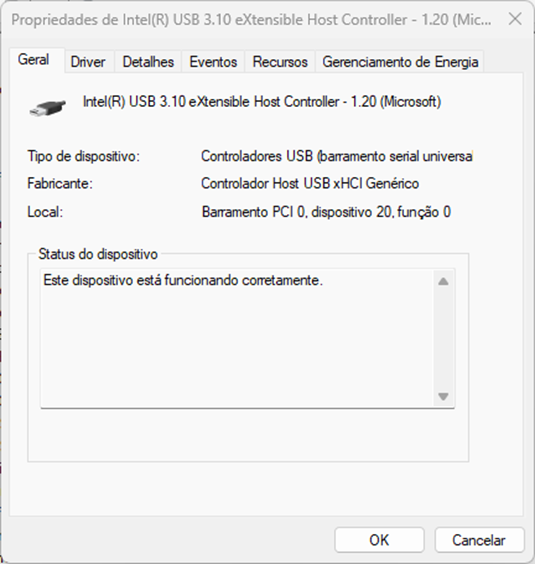
Click on Gerenciamento de energia.
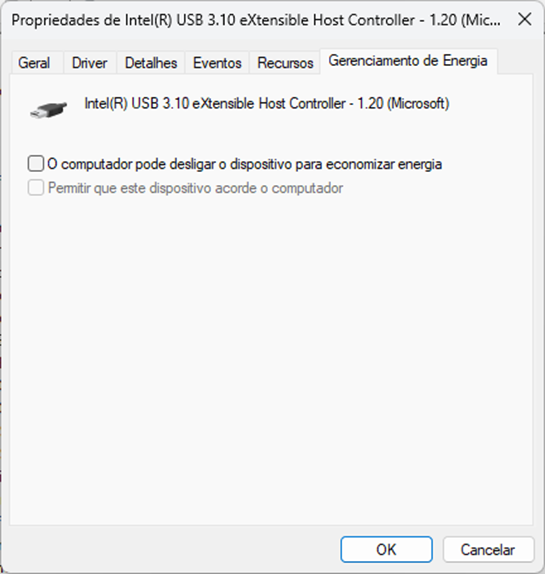
Disable the option: O Computador pode desligar o dispositivo para economizar energia. Repeat this procedure for all USB devices.
Still have questions?