Listening to and Saving Recordings in Logger 2.0
Logger 2.0 is a powerful software tool for recording and streaming audio over the internet. Through a dynamic and intuitive web interface, it allows you to access your recordings in a simple, convenient, and secure way. To listen to or save your recordings, follow the instructions below.
How to Save a Recording
First, open Logger 2.0 and select a recorder on the timeline.
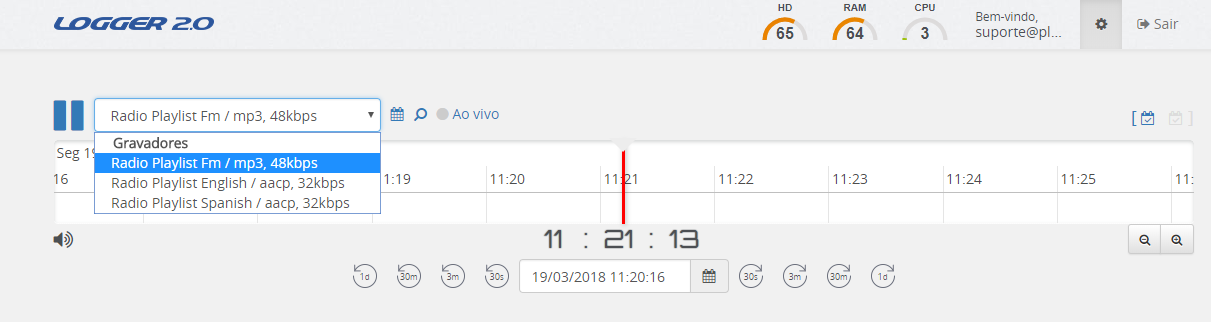
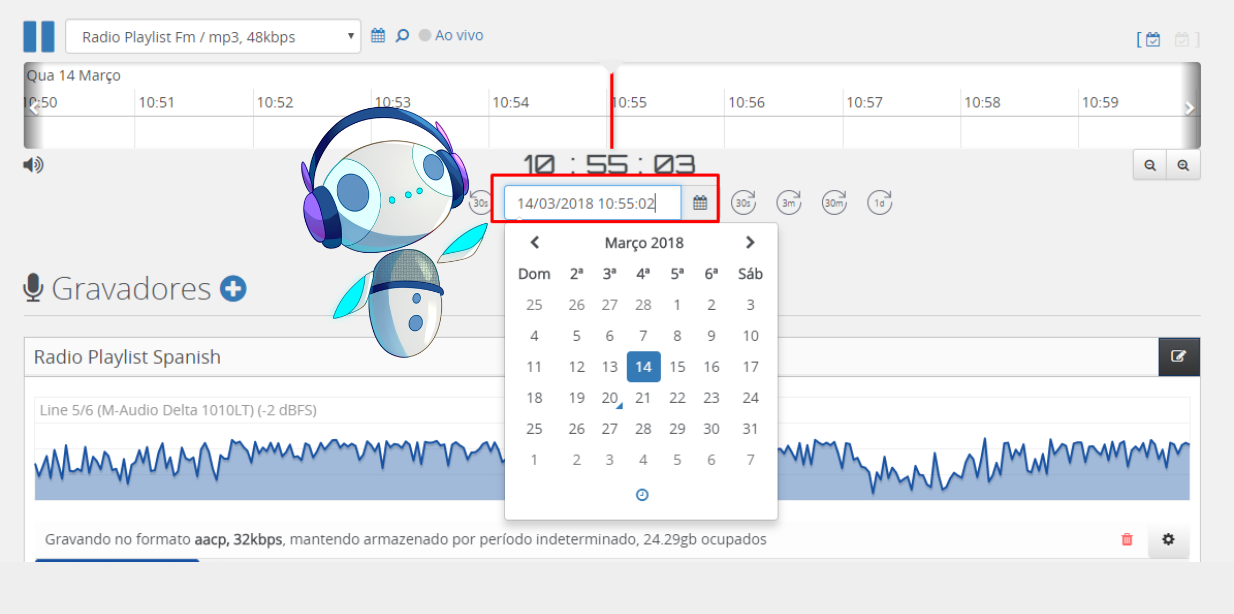
Next, set the date and start time for the recording.
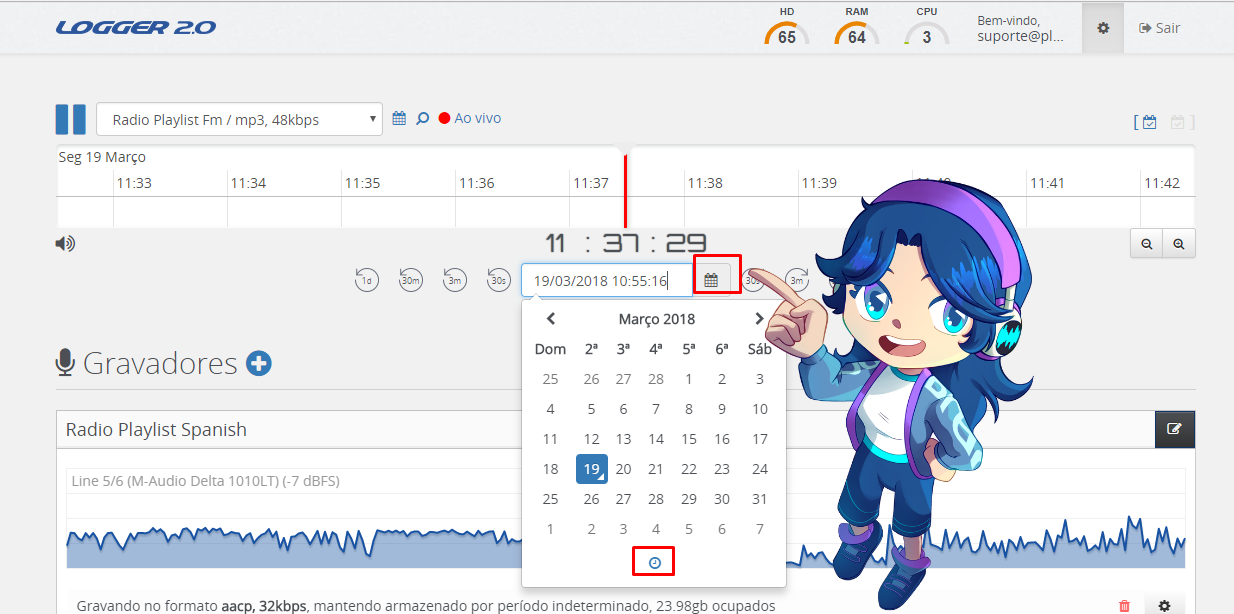
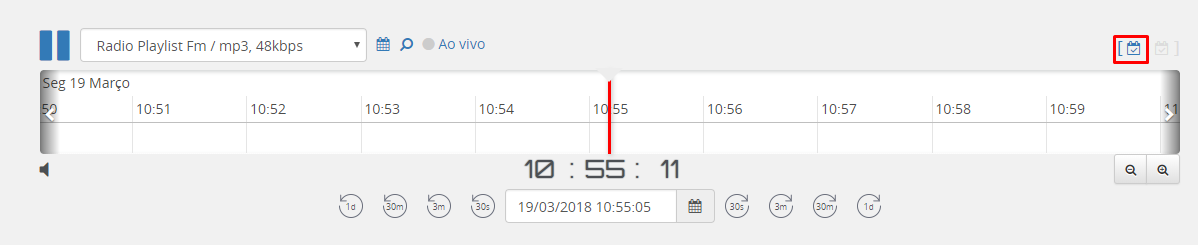
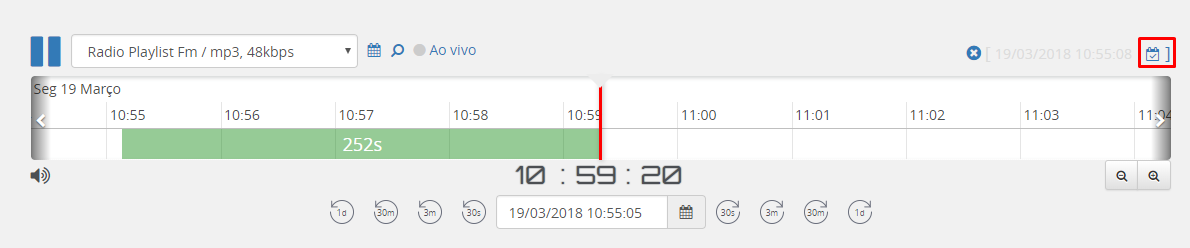
After setting the date and start time, click the calendar icon located in the upper-right corner, above the timeline.
This will allow you to set the recording range. You can drag the timeline to the left using the mouse or, if you prefer, enter the end date and time in the central calendar.
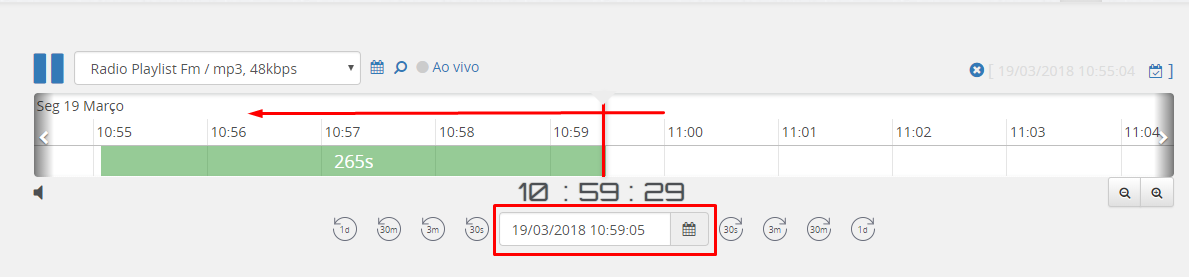
After selecting the desired time period, click the calendar icon on the right, located in the upper corner.
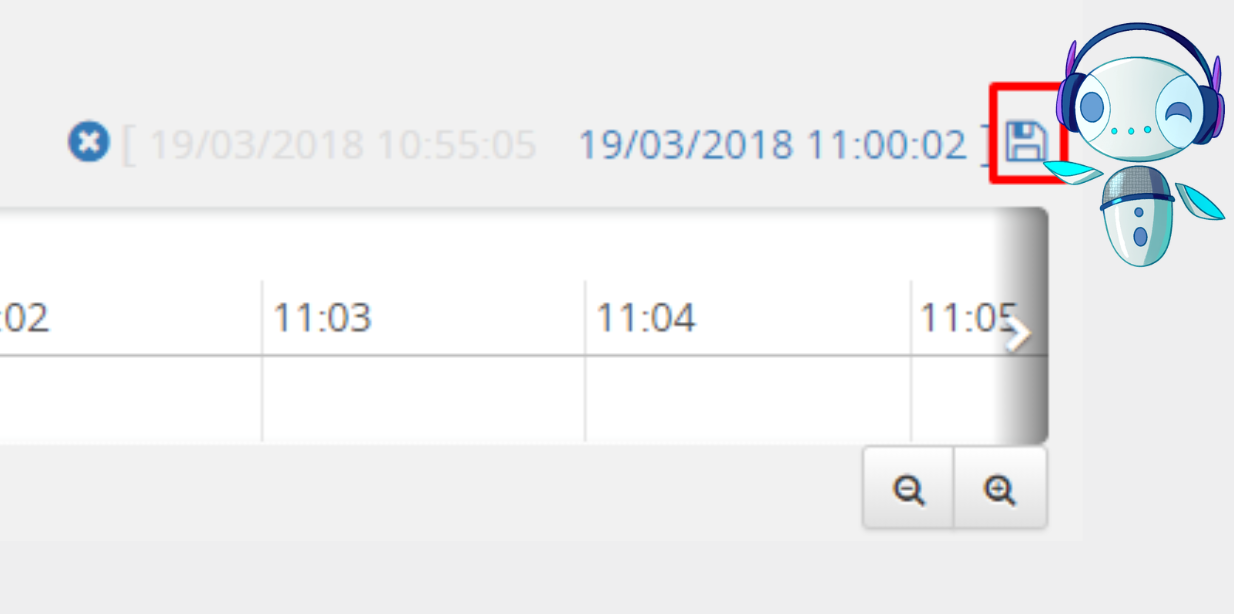
Next, a floppy disk icon will appear. When you click on it, the audio download will begin.
How to Listen to Live and Old Recordings
In Logger 2.0, you can listen to a recording before saving it, as well as monitor what is being recorded in real time.
Listen Live
To listen to the live recording, select the recorder.

Click “Live.” Note that the “gray dot” will turn red, and the timeline will be moved to the current date and time.

Listen to an old recording
To listen to an old audio recording, select the recorder, set the desired date and time, and the timeline will move to the specified period.
Please contact us!
Our team is ready to help you listen to and save your Logger 2.0 recordings.
Access the Customer Area